
Public Wi-Fi networks make life easier when you’re on the go. You can check emails, browse the web, or complete tasks anywhere.
But convenience comes with risks that can expose your data. Learning how to stay safe on public Wi-Fi protects your privacy and keeps your information secure.
Understanding the Risks of Public Wi-Fi
Many people assume public Wi-Fi is safe because it’s free and widely available. However, these networks often lack encryption and are open to hackers.
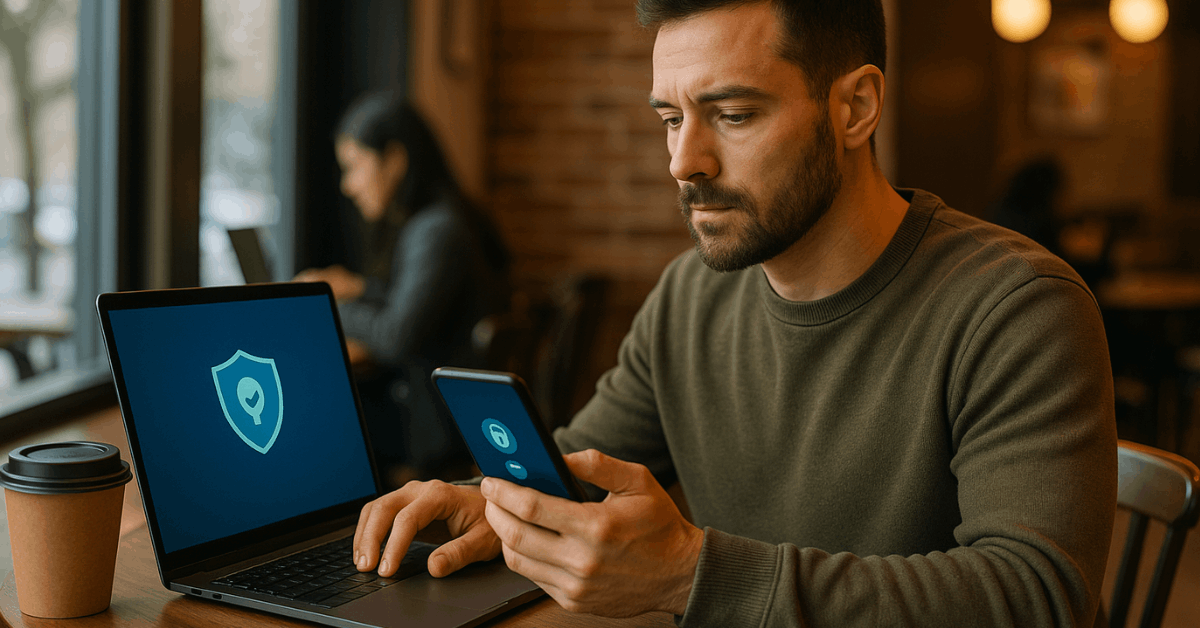
Knowing the risks helps you make better choices before connecting. Awareness is your first defense against online threats.
What Makes Public Wi-Fi Unsafe?
Public Wi-Fi is often unsecured, meaning anyone can access it without authentication. Without encryption, hackers can intercept data as it travels between your device and the network.
Attackers can even create fake hotspots that mimic legitimate ones. Always verify a network’s name before connecting.
Common Cyber Threats
Here are the most common attacks on open networks. These can happen quietly, even while you browse normally.
- Man-in-the-Middle (MITM) attacks: Hackers intercept communication between your device and websites.
- Evil Twin hotspots: Fake Wi-Fi networks designed to steal data.
- Session hijacking: Attackers take over active sessions, such as online banking or email.
Essential Safety Practices Before Connecting
Before joining any network, it’s best to prepare your device. Simple actions can significantly reduce your exposure to threats.
These precautions should become part of your routine when using public connections.
Check Network Authenticity
Always confirm with staff that the network name you’re joining is correct. Hackers often use nearly identical names to confuse users.
Avoid any hotspot that looks suspicious or contains random letters or numbers. Connecting only to verified networks keeps your data protected.
Turn Off Auto-Connect Features
Many devices are set to automatically connect to remembered networks. Disable this option in your Wi-Fi settings.
Auto-connect can make your device join unsafe networks without your consent. Keeping it off gives you full control over connections.
Use a Personal Hotspot When Possible
If you have mobile data, consider using your phone as a personal hotspot. It’s more secure than shared public networks.
Avoid performing sensitive actions such as financial transactions on public Wi-Fi. Personal data should always be transmitted over trusted sources.
Use Encryption and Security Tools
A few simple tools can protect your device and communication. They help ensure your data remains private, even if someone tries to intercept it. Always combine these tools for stronger digital protection.
Enable a VPN (Virtual Private Network)
A VPN encrypts your internet traffic, creating a secure tunnel between your device and the web. This makes it harder for hackers to view your activities.
Choose a reputable VPN provider with a no-logs policy. Using VPNs regularly keeps your data private across networks.
Use HTTPS Websites Only
Look for the padlock icon in your browser’s address bar. Websites with HTTPS protect your connection by encrypting data exchanges.
Avoid entering personal details on sites that lack it. Modern browsers can also alert you when a page is not secure.
Activate Firewall and Antivirus
A firewall blocks unwanted access attempts from suspicious networks. Updated antivirus software scans for malware and phishing threats.
Make sure both are turned on before you connect to any Wi-Fi network. This double layer of protection helps prevent unauthorized intrusion.
Adjust Device Settings for Better Protection
Your device settings can strengthen your privacy. Changing a few default options minimizes the risk of sharing or exposing sensitive information. These simple steps can make a big difference.
Turn Off File and Printer Sharing
When sharing is enabled, strangers can access your device’s files. Go to your system settings and turn off file and printer sharing.
This limits visibility on public networks. Keeping it off ensures your personal folders stay private.
Keep Software and OS Updated
Software updates often include patches for security flaws. Enable automatic updates so your system remains protected.
Delaying them increases the chance of being targeted by known exploits. Regular updates are essential for maintaining safety.
Forget Networks After Use
Forgetting a Wi-Fi network prevents your device from connecting to it automatically in the future. This helps avoid exposure if the same network becomes compromised later.
On most devices, you can remove saved networks in Wi-Fi settings. Doing this adds another small layer of control.
Safe Browsing Habits on Public Wi-Fi
Practicing safe browsing is as important as having security tools. Certain habits protect you even if the network isn’t secure. Think carefully about what you access while connected.
Avoid Logging Into Sensitive Accounts
Avoid accessing your bank, email, or work accounts while on public Wi-Fi. Even if the website is secure, the network may not be.
It’s safer to wait until you’re using a private connection. Sensitive data deserves the highest level of protection.
Log Out After Each Session
Leaving sessions open increases your risk of being hijacked. Always log out after finishing online activities.
Even closing a tab isn’t enough — log out properly. This prevents unauthorized access to your accounts.
Clear Cookies and Cache Regularly
Cookies store information that can reveal your browsing history or preferences. Regularly clearing cookies and cache helps protect privacy.
Most browsers include simple tools to manage this data. Keeping them clean reduces the risk of data leaks.
Use Two-Factor Authentication (2FA)
Adding an extra step to your login process makes it harder for hackers to break in. Two-Factor Authentication (2FA) ensures only you can access your accounts. Even if someone steals your password, they can’t log in without the code.
Why 2FA Is Critical?
2FA adds a secondary layer of protection, often via SMS or an app. It confirms your identity beyond just a password.
Cybercriminals rarely have access to both your password and your phone. Using it for all important accounts is strongly recommended.
Best 2FA Practices
Apps like Google Authenticator, Authy, or Microsoft Authenticator are secure and easy to use. Avoid using email for verification while on public Wi-Fi.
App-based codes are safer than text messages. Consistent use of 2FA builds a stronger security habit.
Detecting and Responding to Suspicious Activity
Knowing the signs of trouble helps you act fast. Quick response reduces the damage if you’ve connected to a risky network. Awareness here can make all the difference.
Signs of a Hacked Connection
If your device disconnects suddenly or redirects to strange websites, something is wrong. Pop-ups asking for logins or downloads are red flags.
Slow browsing or unusual data usage may also indicate compromise. Always treat these signs seriously.
What to Do If You Suspect a Breach?
Immediately disconnect from Wi-Fi if you sense an issue. Then run a full antivirus scan to remove potential threats.
Change your passwords using a secure connection. Finally, monitor your accounts for unusual activity.
Best Tools and Apps for Wi-Fi Security
Technology can make Wi-Fi use safer with minimal effort. You can find tools that protect your connection, scan your network, and detect risks. Here are some of the most effective ones.
VPN Apps for Everyday Users
Reliable VPN services such as ProtonVPN, NordVPN, or ExpressVPN automatically encrypt your data. They protect your browsing sessions from hackers.
Many have mobile versions that work on both Android and iOS. Choosing a trusted provider ensures consistent security.
Antivirus and Firewall Tools
Well-known tools like Bitdefender, Avast, and Windows Defender offer real-time scanning. They detect malware instantly and block malicious traffic.
Keep them updated to catch the latest threats. Continuous protection helps prevent unwanted intrusions.
Network Monitoring Apps
Apps such as Fing or GlassWire show every device connected to your network. If you see an unknown device, disconnect or change your password.
These tools help detect potential intruders quickly. Using them regularly boosts your digital awareness.
Educating Others About Wi-Fi Safety
Staying secure online is a collective effort. The more people understand risks, the safer everyone becomes. Share what you know to protect others, too.
Raising Awareness in Schools or Offices
Organizations should hold short sessions about cyber hygiene. Teaching employees or students how to identify unsafe networks builds overall security.

IT teams can distribute clear instructions about safe Wi-Fi use. Education prevents most avoidable breaches.
Teaching Family Members
Children and seniors are often the easiest targets for scams. Show them how to identify official Wi-Fi names and avoid suspicious pop-ups.
Encourage using VPNs and secure apps on shared devices. Consistent education creates safer online habits at home.
Stay Secure Wherever You Connect
Public Wi-Fi can be convenient but risky if not used carefully. By following these safety practices, you can enjoy connectivity without compromising privacy.
Always prioritize VPNs, 2FA, and safe browsing habits to protect your personal data. Staying alert and informed is your best defense.