
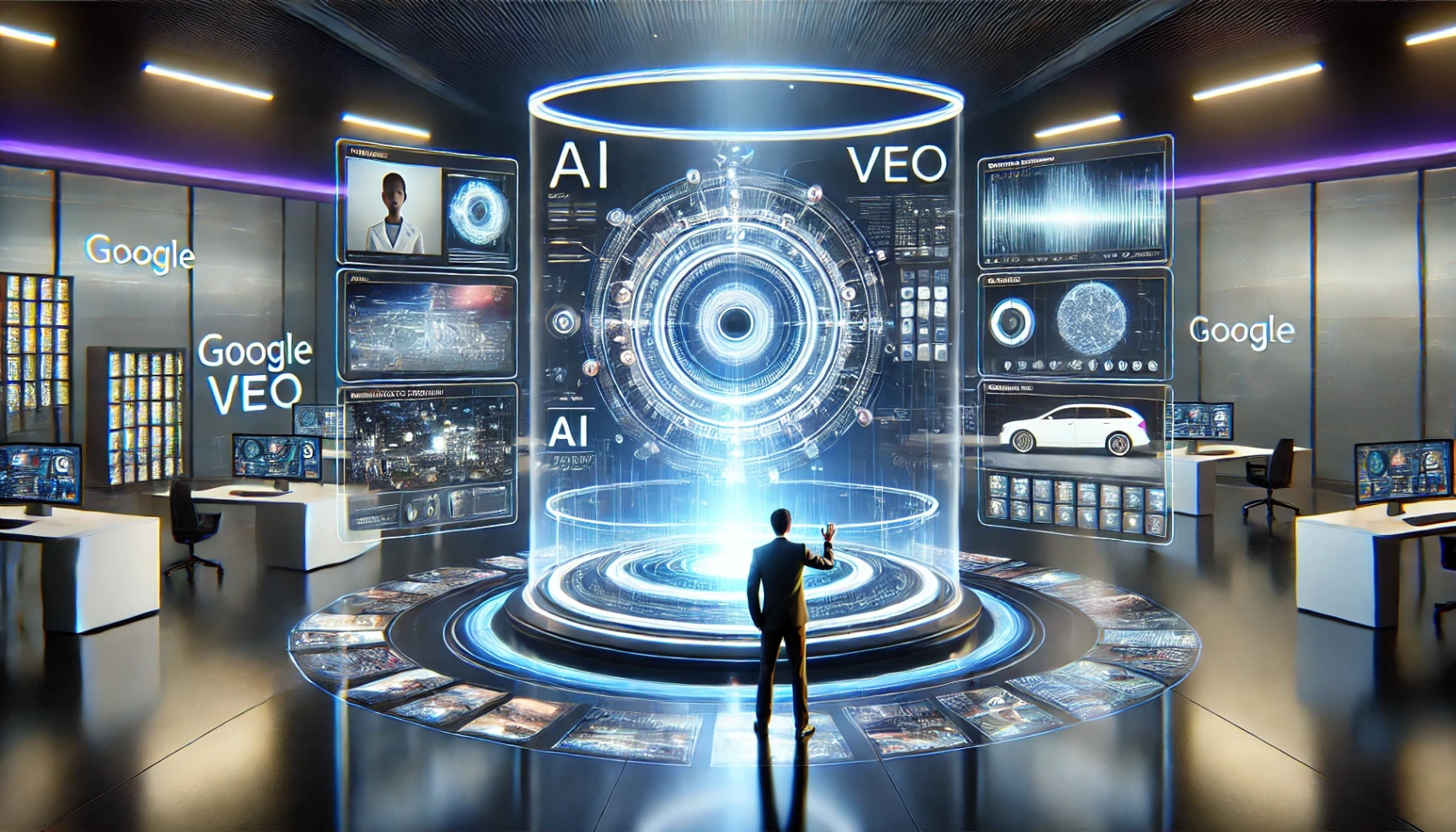
Google Veo AI is the newest generative video model announced by Google DeepMind.
First introduced at Google I/O 2024, it is designed to generate cinematic-quality videos from simple text prompts.
With advanced scene coherence, realistic visuals, and synchronized audio, Veo marks a major step in the evolution of creative AI tools.
What is Google Veo AI?
It is a high-fidelity AI Google video tool, a text-to-video model developed by Google DeepMind.
Unlike other AI video tools, Veo can generate long-form videos in 1080p and 4K, using rich text prompts and optional visual inputs.
It understands camera movements, scene transitions, and cinematic storytelling.
According to Google, Veo uses a "latent video diffusion transformer architecture" for improved quality and consistency over previous models.
Highlights
This AI tool also integrates contextual understanding, enabling it to maintain characters and settings across scenes.
Google says it can even simulate specific filming styles such as aerial shots, slow motion, or time-lapse.
There is an AI Google app version of Google Veo AI available through the Gemini app, which supports Veo 3 for AI-powered video generation.
How to Access Google Veo AI
Where and how to try the model today.
As of now, Veo AI is in limited release and accessible through two main channels:
Google Labs (for creators):
- Visit labs.google.
- Search for "VideoFX," the experimental interface to Veo.
- Sign in with your Google account and join the waitlist.
- Access is currently limited to select creators in the U.S.
Google Cloud Vertex AI (for businesses):
- Companies can integrate Veo into workflows via Vertex AI.
- This is ideal for enterprise use and development teams.
Both paths require a stable internet connection, a Google account, and agreement to the terms of responsible use.
Key Features and Capabilities
What makes Veo different from other tools?
- Ultra HD Output: Generates 1080p to 4K resolution video, maintaining crisp visuals even in longer sequences.
- Scene Consistency: Maintains logical progression and continuity between scenes.
- Prompt Flexibility: Accepts text prompts and, optionally, reference images or video clips.
- Multilingual Support: Works with over 20 languages, including Spanish, Japanese, German, and Portuguese.
- Cinematic Control: Allows simulation of camera movements and video styles.
- Audio Synthesis: Automatically includes dialogue, ambient sound, or music depending on context (via integration with Google's AI audio tools).
These features allow a wider range of creators to produce professional-quality videos without advanced editing software or production equipment.
Step-by-Step Guide to Using Google Veo AI
From prompt to production in just a few clicks.
Use your Google account to access labs.google or Vertex AI.
Input a detailed description (e.g., "a robot exploring a desert planet at sunset"), including actions, setting, and style.
Add reference images for better scene accuracy. Select settings such as resolution, style (e.g., noir, anime), or duration.
Generate Video
Submit your prompt and let Veo process the input. Video generation may take a few minutes, depending on complexity.
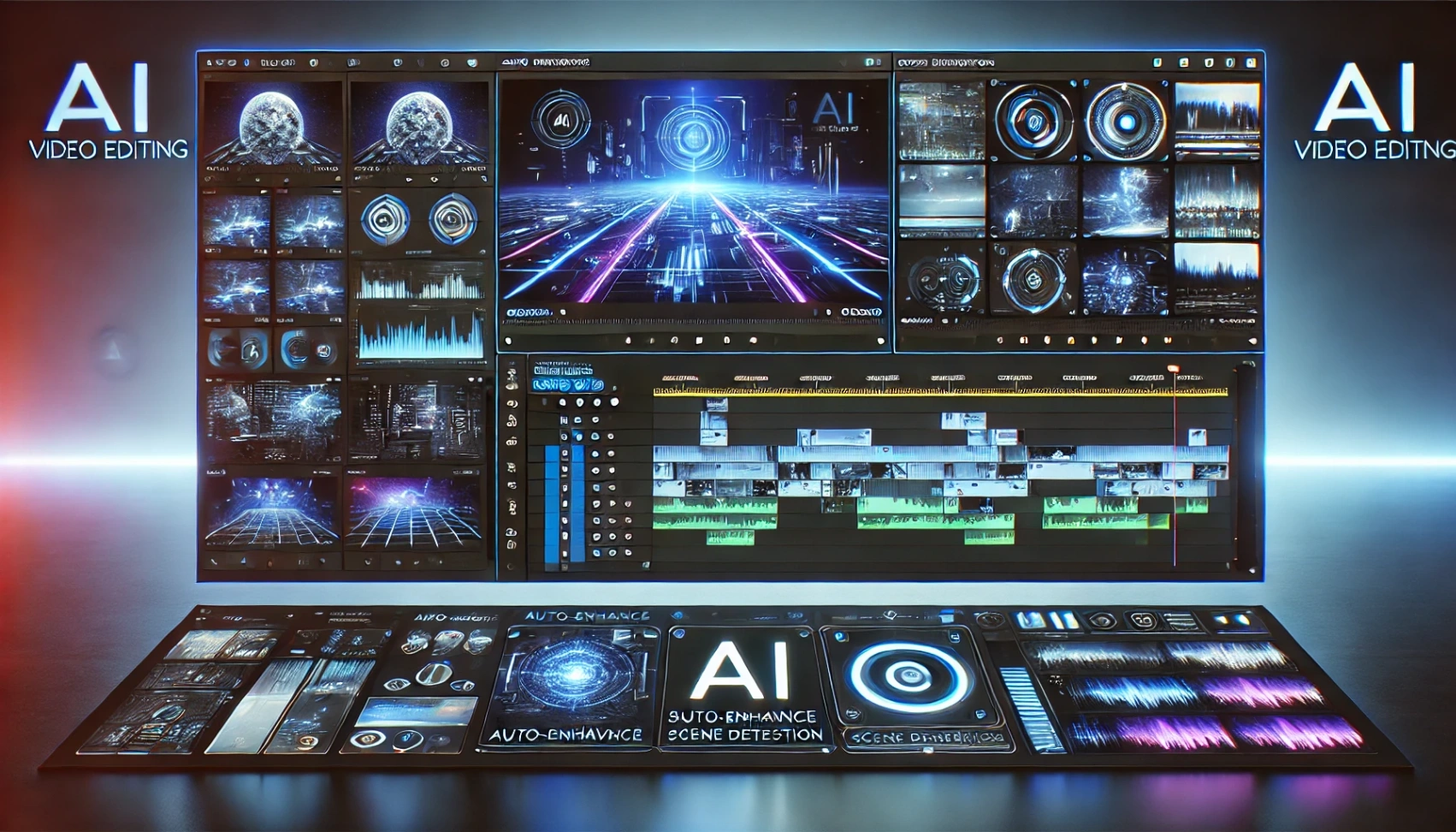
Watch the generated clip. Use built-in editing tools to trim or modify elements. Export the video in MP4 format.
Share to YouTube or store in Google Drive.
Comparisons with Similar Tools
How does Veo compare to other AI video platforms?
| Feature | Google Veo AI | OpenAI Sora | Runway Gen-2 | Pika Labs |
|---|---|---|---|---|
| Max Resolution | 4K | 1080p (preview) | 4K | 1080p |
| Audio Support | Yes | No | Partial | No |
| Scene Consistency | High | Moderate | Moderate | Low |
| Multilingual Input | 20+ languages | Limited | Yes | Limited |
| Access | Limited | Research only | Public | Public |
While Sora is known for its realism, it lacks audio. Runway is more accessible but lacks Veo’s advanced scene coherence.
Veo’s key advantage lies in the combination of cinematic fidelity, long-form structure, and audio.
Tips for Better Results
How to improve prompt quality and output.
- Be Descriptive: Include details like lighting, color mood, and character actions.
- Use Simple Language: Avoid overly complex instructions.
- Leverage Reference Images: Upload a style image or photo for better scene alignment.
- Break Down Ideas: Split complex stories into multiple prompts.
- Keep Testing: Use Veo's output history to iterate and improve your videos.
Privacy, Limits & Ethical Considerations
Responsible AI use and what to avoid.
Google emphasizes the ethical use of Veo AI. The model has safeguards to prevent the generation of harmful, violent, or misleading content.
Digital watermarks are applied to all outputs to identify them as AI-generated (Google Blog).
Additionally, the model still has limitations:
- Cannot produce real-time video.
- Not suitable for live footage editing.
- May hallucinate visual elements if prompts are vague.
Privacy is also a priority. All user data is processed according to Google’s Privacy Policy, and uploading personally identifiable content is discouraged.
Users are advised not to create impersonations, political deepfakes, or copyrighted replicas.
Which platforms are not suitable for this tool?
Google Veo AI is a powerful generative video model, but it’s not suitable for all platforms or use cases.
Mobile Devices (Phones & Tablets)
- Why it’s unsuitable: Veo AI is a resource-intensive tool designed for desktop use. Most mobile browsers or apps can't handle the heavy processing or detailed UI of Google Labs or Vertex AI.
- Recommendation: Use a desktop browser (Chrome, Firefox, Edge) on a PC or Mac for best results.
Unsupported Browsers or Outdated Systems
- Incompatible examples: Internet Explorer, legacy versions of Safari or Firefox.
- Why it’s unsuitable: These may not support the advanced WebGL, JavaScript, or security features required by Veo’s interface.
Social Media Platforms (as a native tool)
- Examples: Instagram, TikTok, Facebook (within the app).
- Why it’s unsuitable: Veo is not integrated into social platforms. You must export the video separately before uploading.
- Alternative workflow: Download your video from Veo and manually upload it to these platforms.
Real-Time Video Editing Software
- Examples: OBS Studio, Zoom, Microsoft Teams, Final Cut Pro.
- Why it’s unsuitable: Veo is not meant for live video production or real-time rendering. It generates video offline, often taking several minutes per render.
Game Engines and AR/VR Platforms
- Examples: Unity, Unreal Engine, Meta Horizon Worlds.
- Why it’s unsuitable: Veo doesn't currently export to 3D environments or support interactivity. It creates 2D video files, not assets usable in immersive or interactive media.
Conclusion
Google Veo AI is a breakthrough for creative professionals, offering a new way to produce cinematic content with just a prompt.
While it is still being rolled out in phases, the tool has already proven itself as a leader in generative video.
Interested users should sign up via Google Labs or explore enterprise integration through Vertex AI.